One portal for your entire pest control operation.
ETOS Qu tracks customer work sites, visit schedules, and work orders in a single app. Multi-brand, passwordless login, plus light and dark modes.
Figures and names in the screenshots are demo (sample) data.
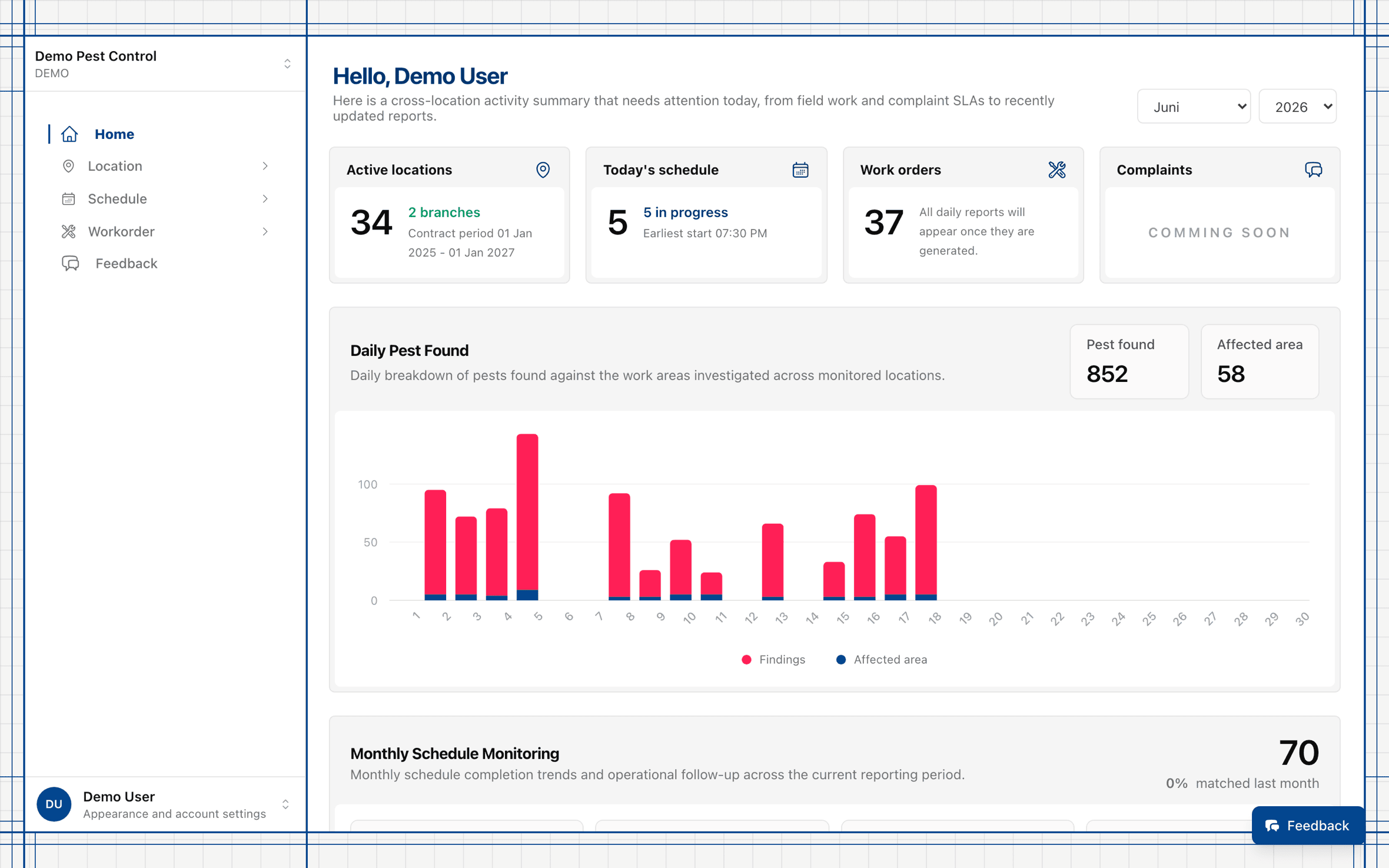
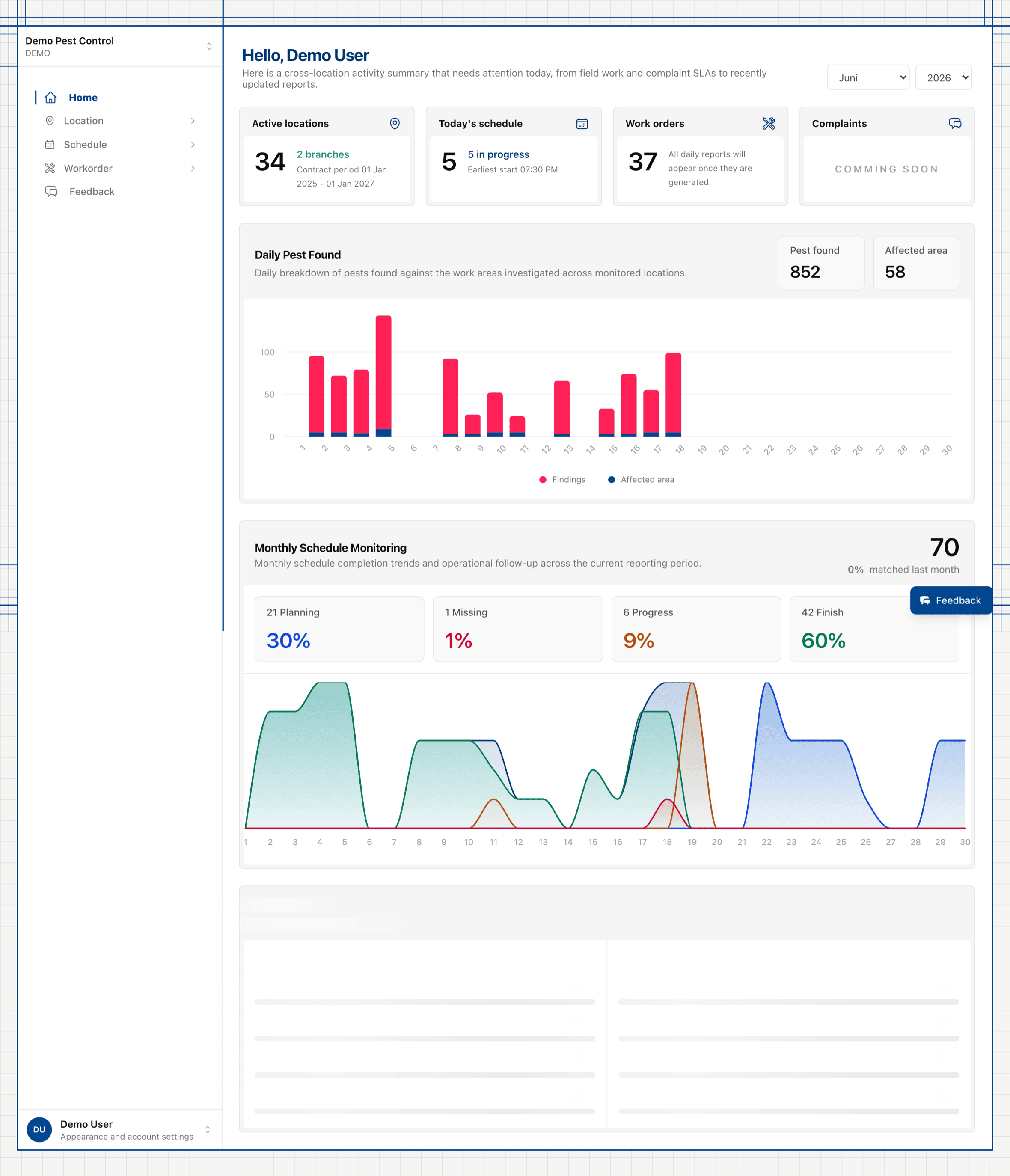
Your operations at a glance
Monitor activity across every location without leaving the page — from field work to the latest reports.
- Four summary cards: Active locations, Today's schedule, Work orders, and Complaints.
- Daily Pest Found chart: daily pest findings per area.
- Monthly Schedule Monitoring: Planning, Missing, Progress, and Finish statuses.
- Monthly Pest Monitoring: most active pests and hotspot locations.
- Month and Year filters to set the reporting period.
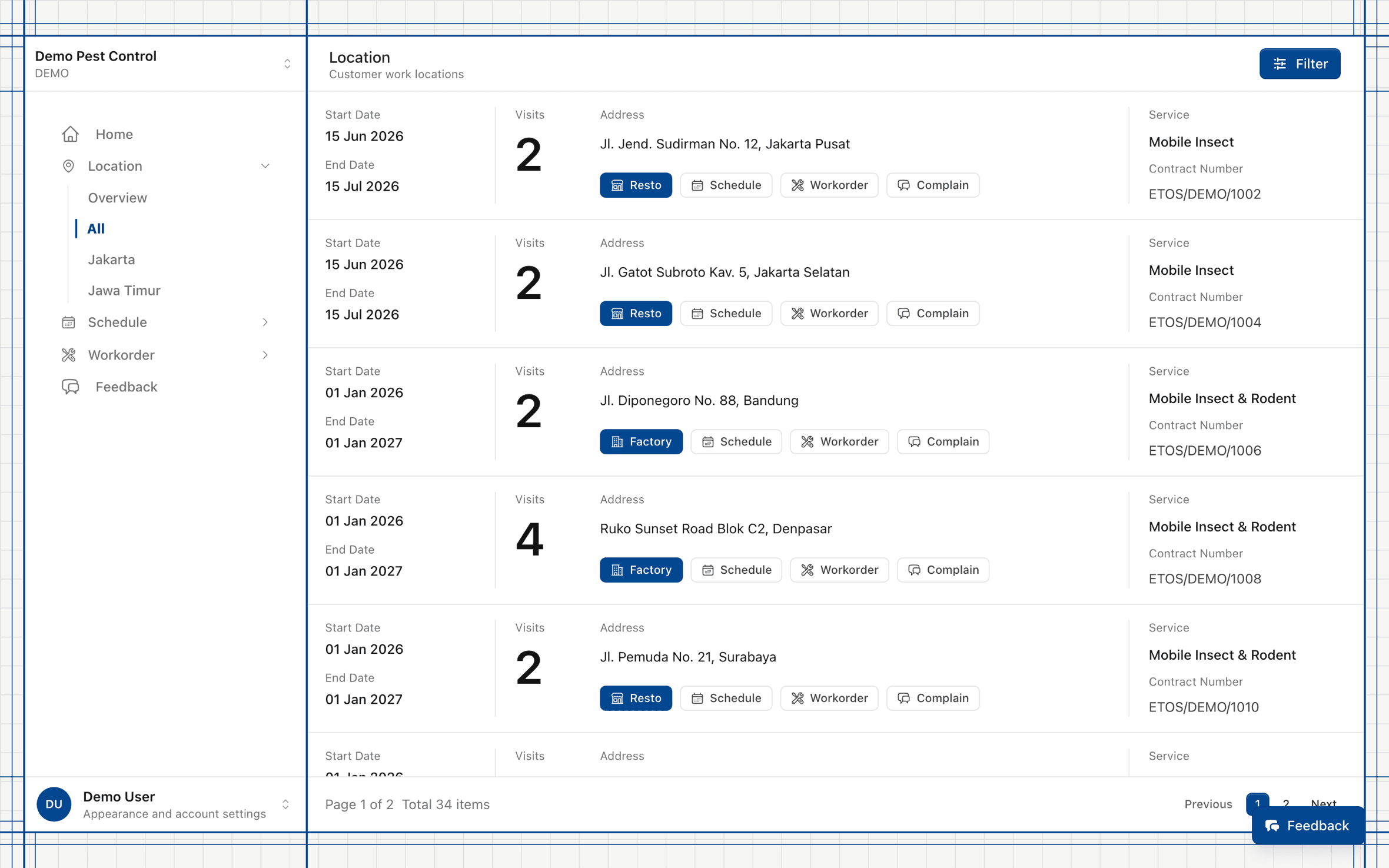
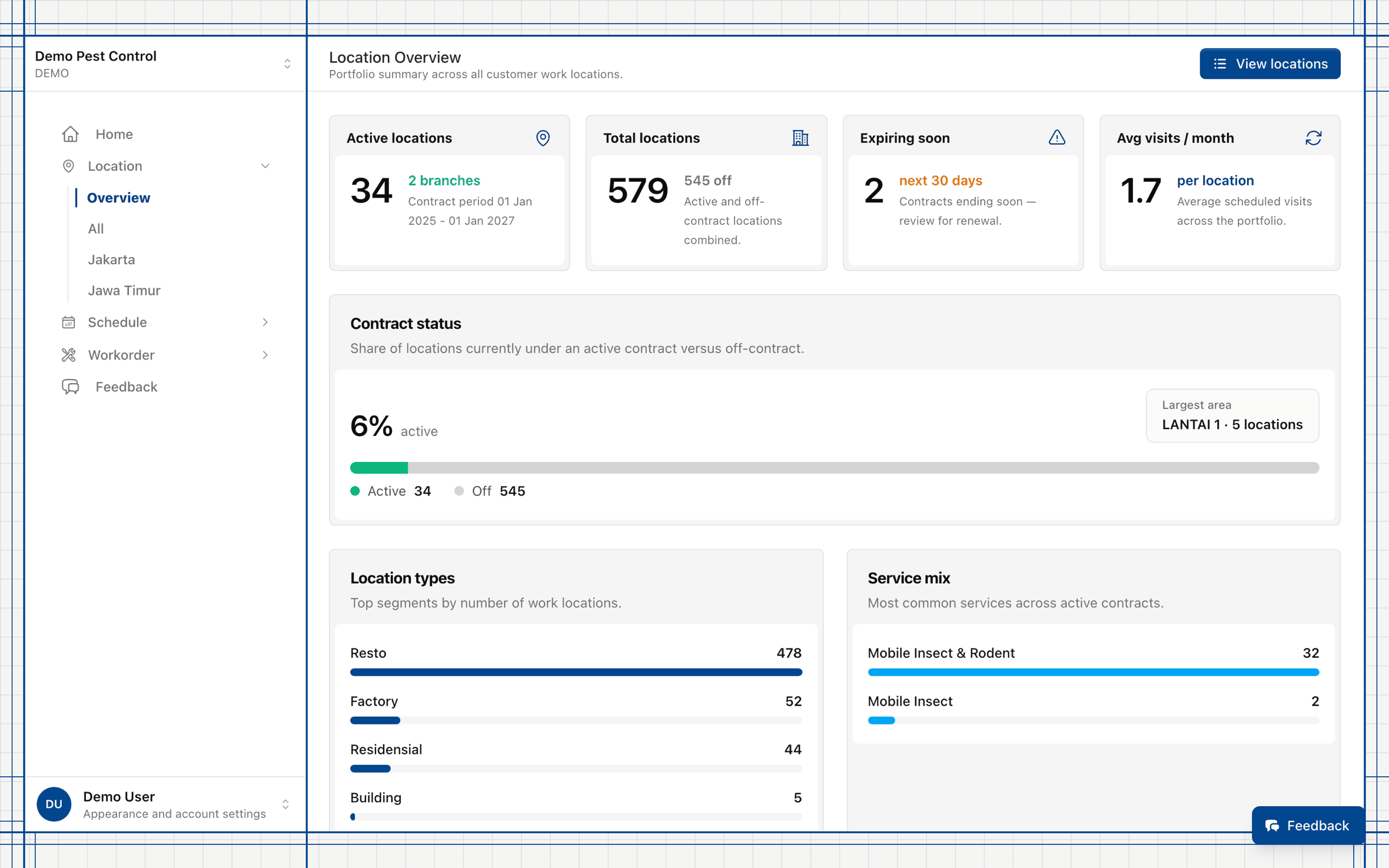
Manage every customer work site
Every location for the active brand, complete with its contract and schedule.
- Portfolio overview: active, total, expiring, and average visits.
- Location list: visits per month, address, contract period and number.
- Filters: search, contract status, branch/area, and service type.
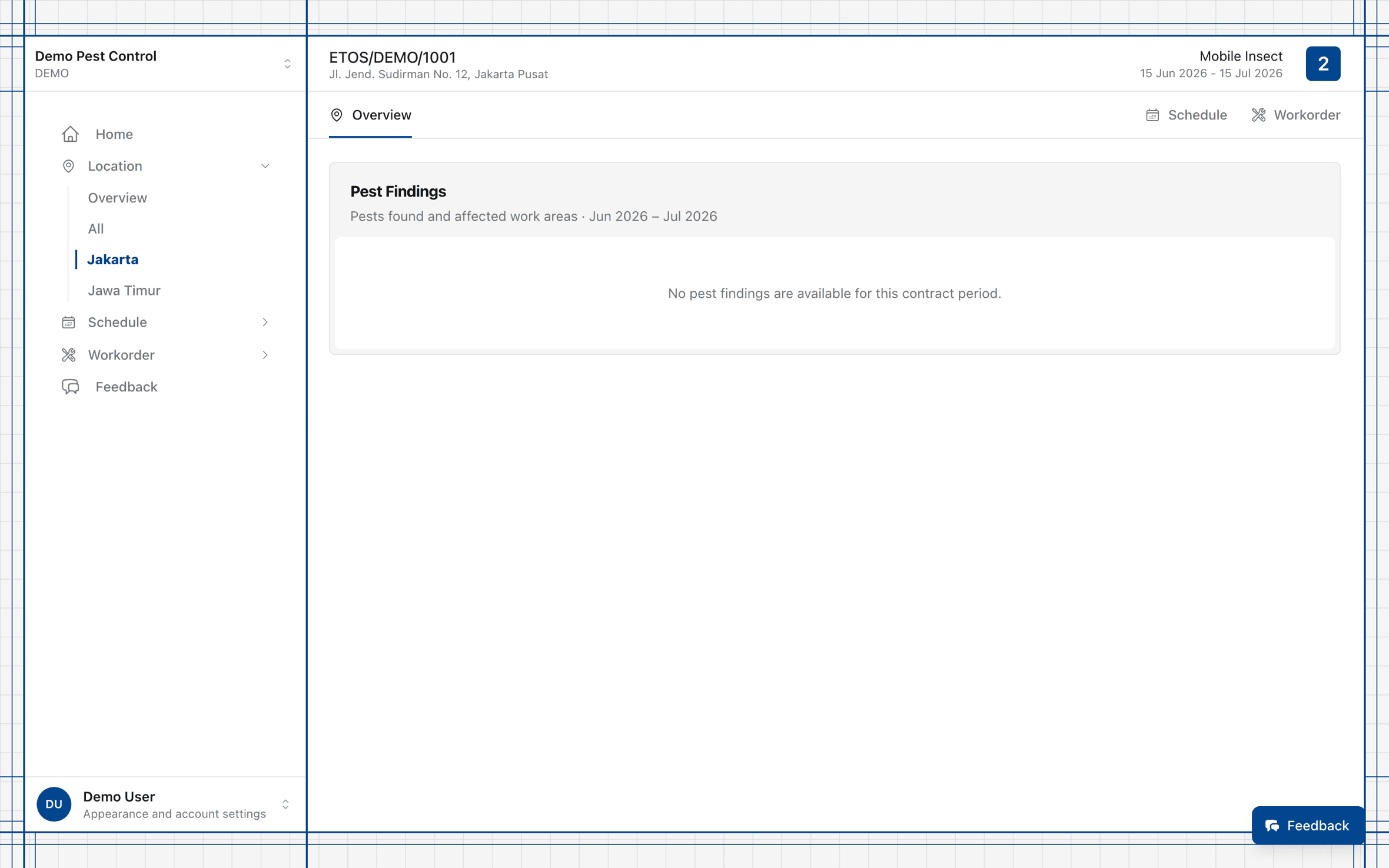
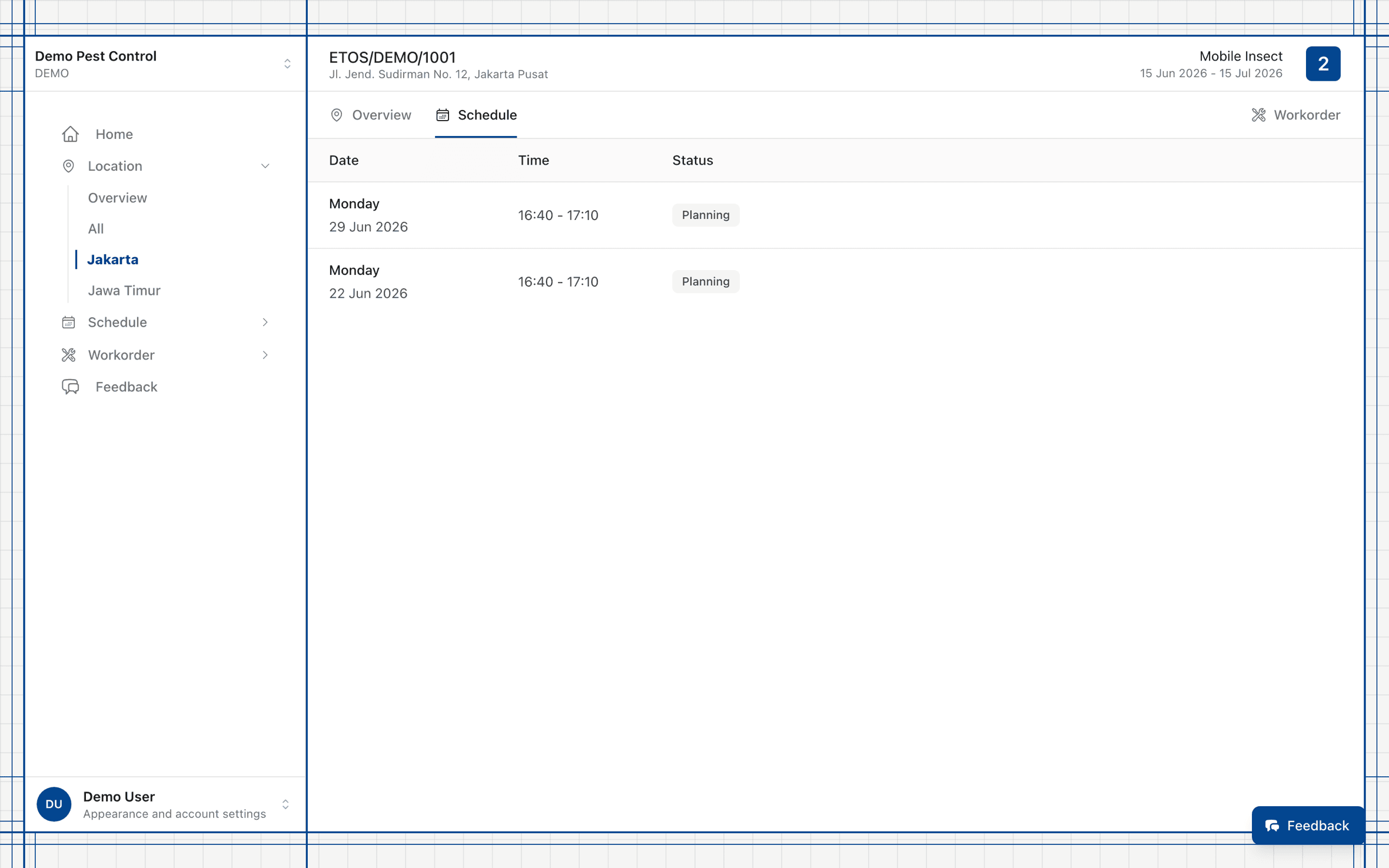
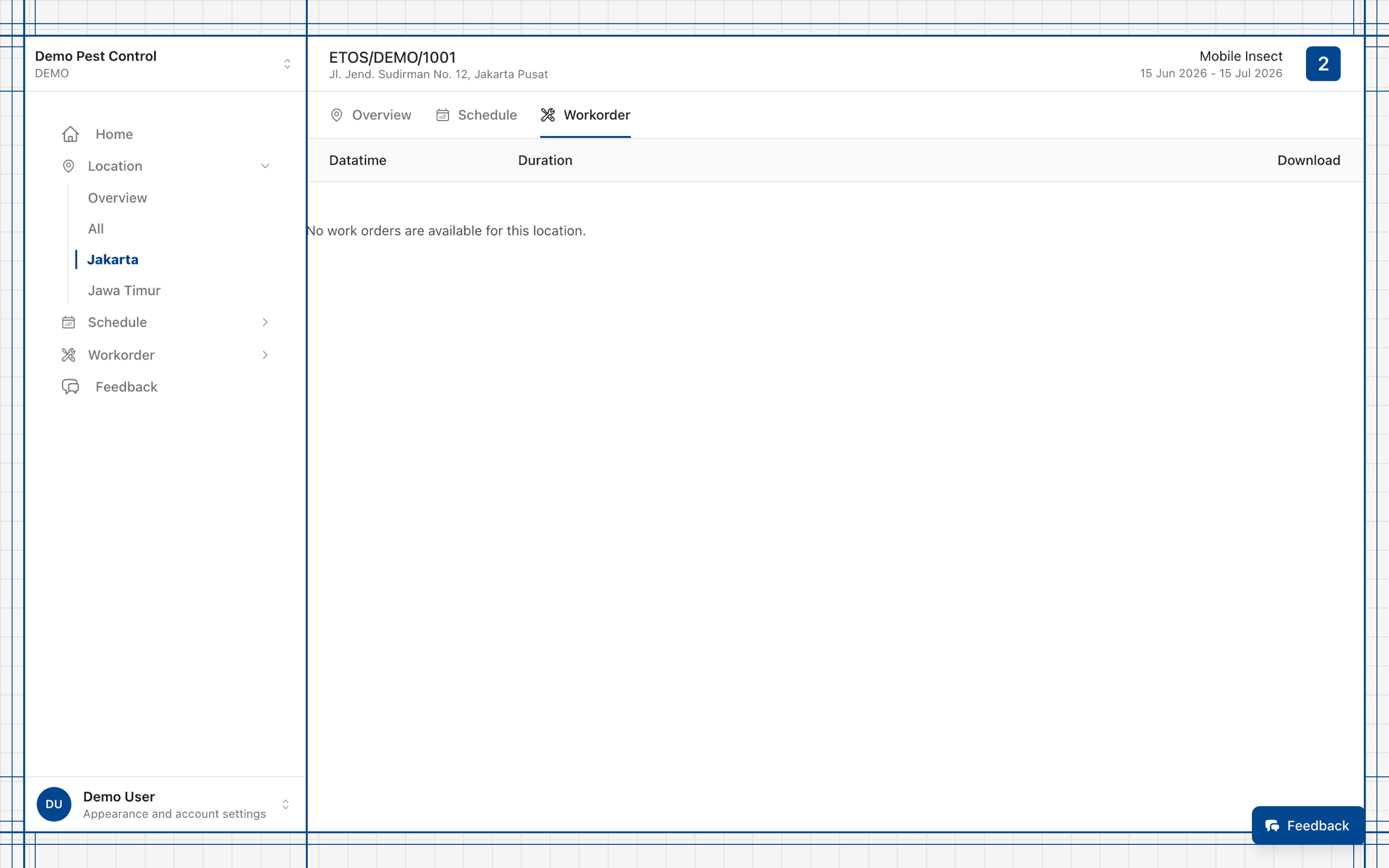
- Location detail with three tabs: Overview, Schedule, and Workorder.
Location detail · three tabs
See visit density and agenda
The weekly heatmap shows how busy the schedule is at a glance — the darker the cell, the denser the schedule.
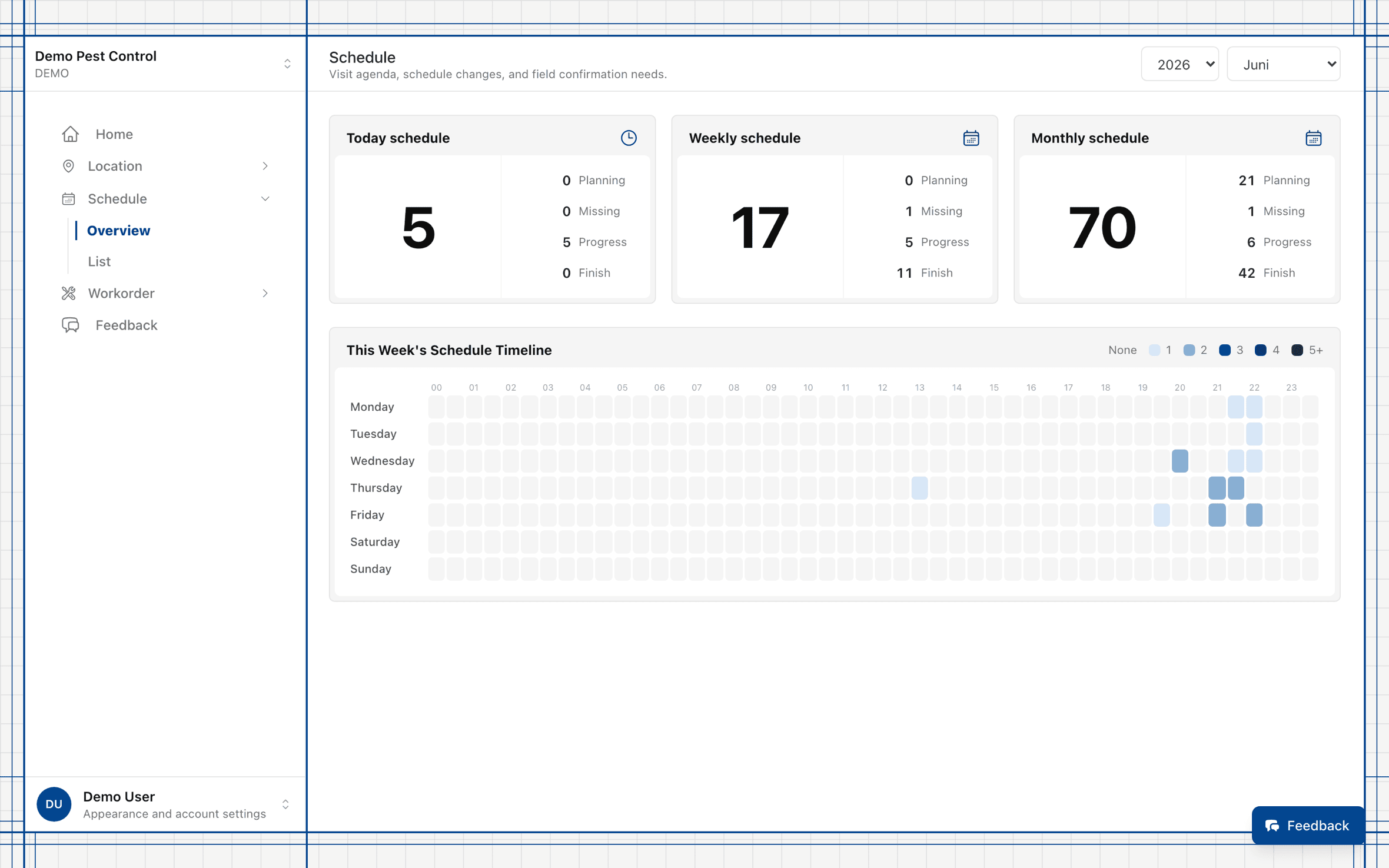
- Weekly heatmap: darker cells mean a denser schedule — click for details.
- Today, Weekly, and Monthly schedule summary cards — click to open the list.
- List view: a monthly schedule table sorted by start time, with color-coded status.
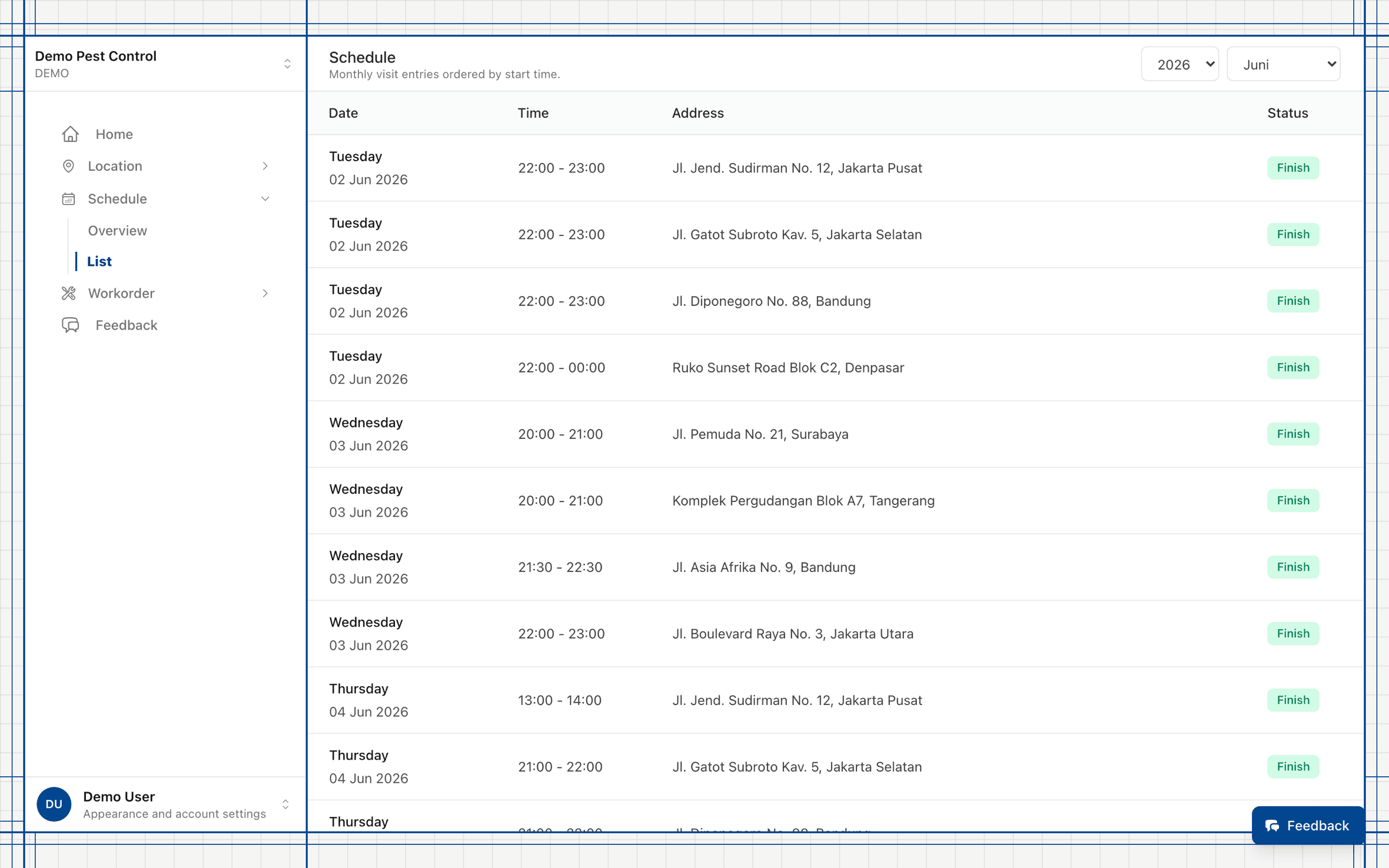
List view — monthly schedule table (scroll to explore).
An archive of completed field work
Work order and pest-finding summaries, ready to download as reports.
- Four cards: Work orders, Pest found, Affected areas, and Monitored locations.
- Daily and monthly pest-finding charts, including hotspot locations.
- List: date-time, duration, location, and a Download report (PDF) button.
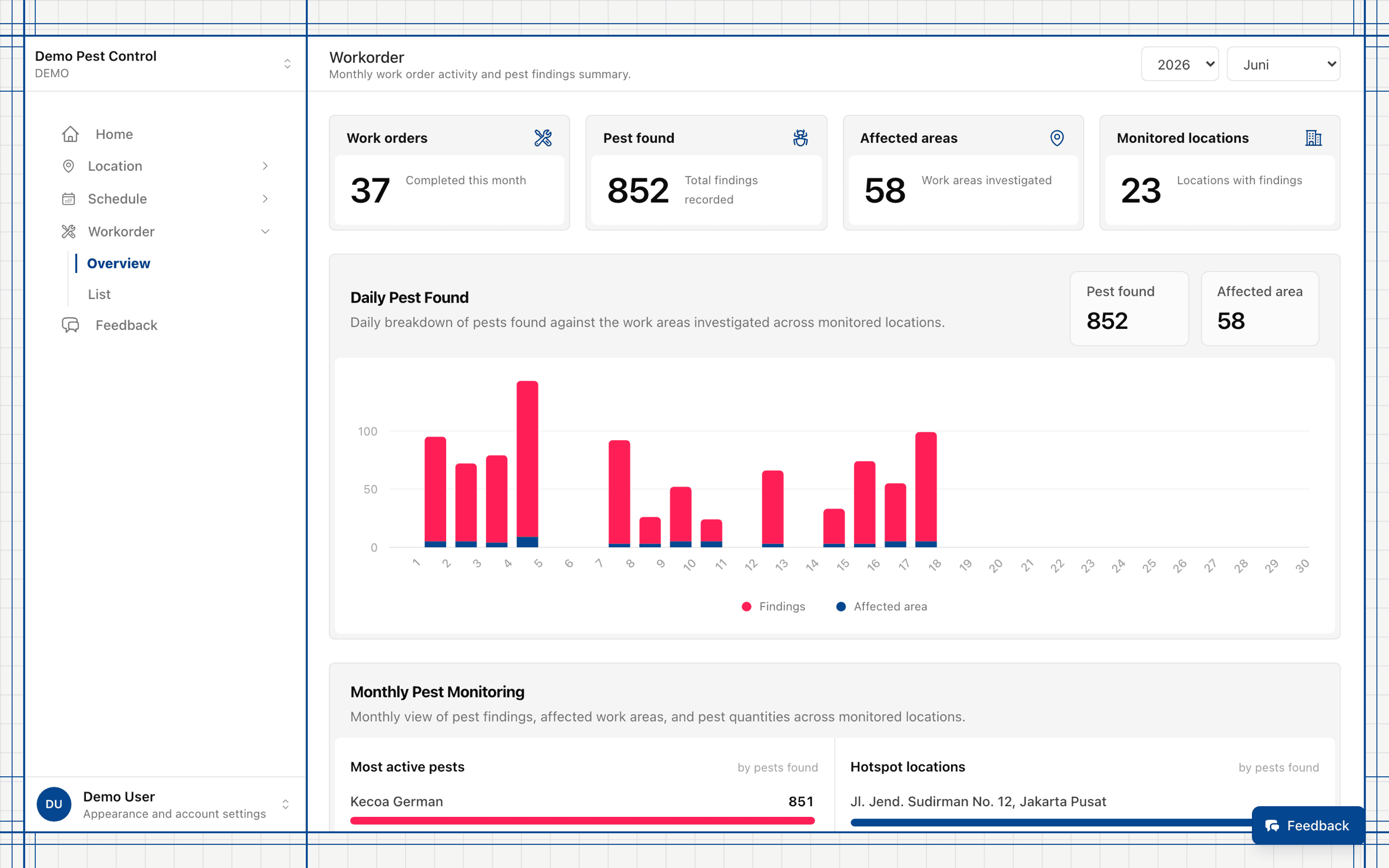
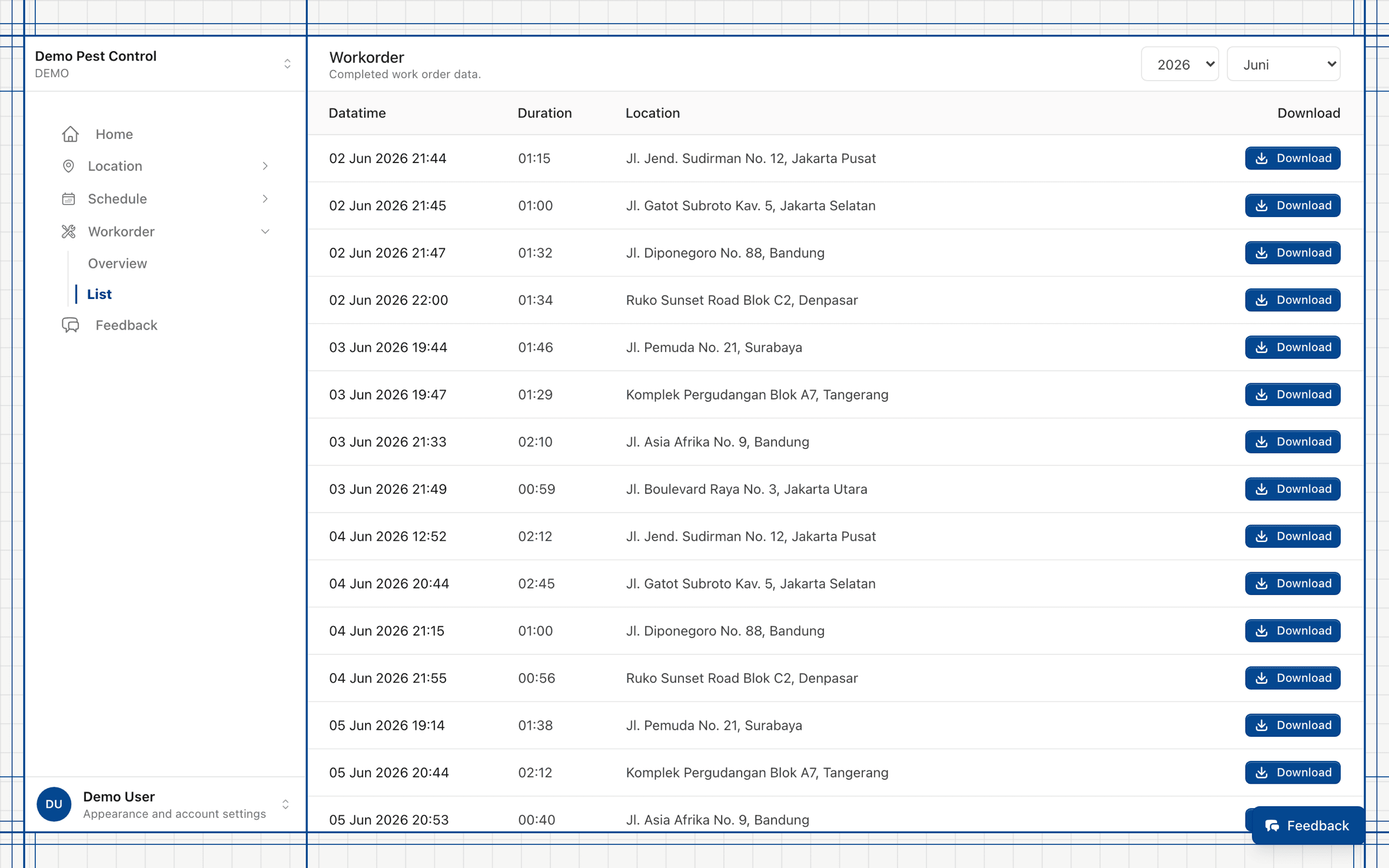
Each row provides a Download report (PDF) button.
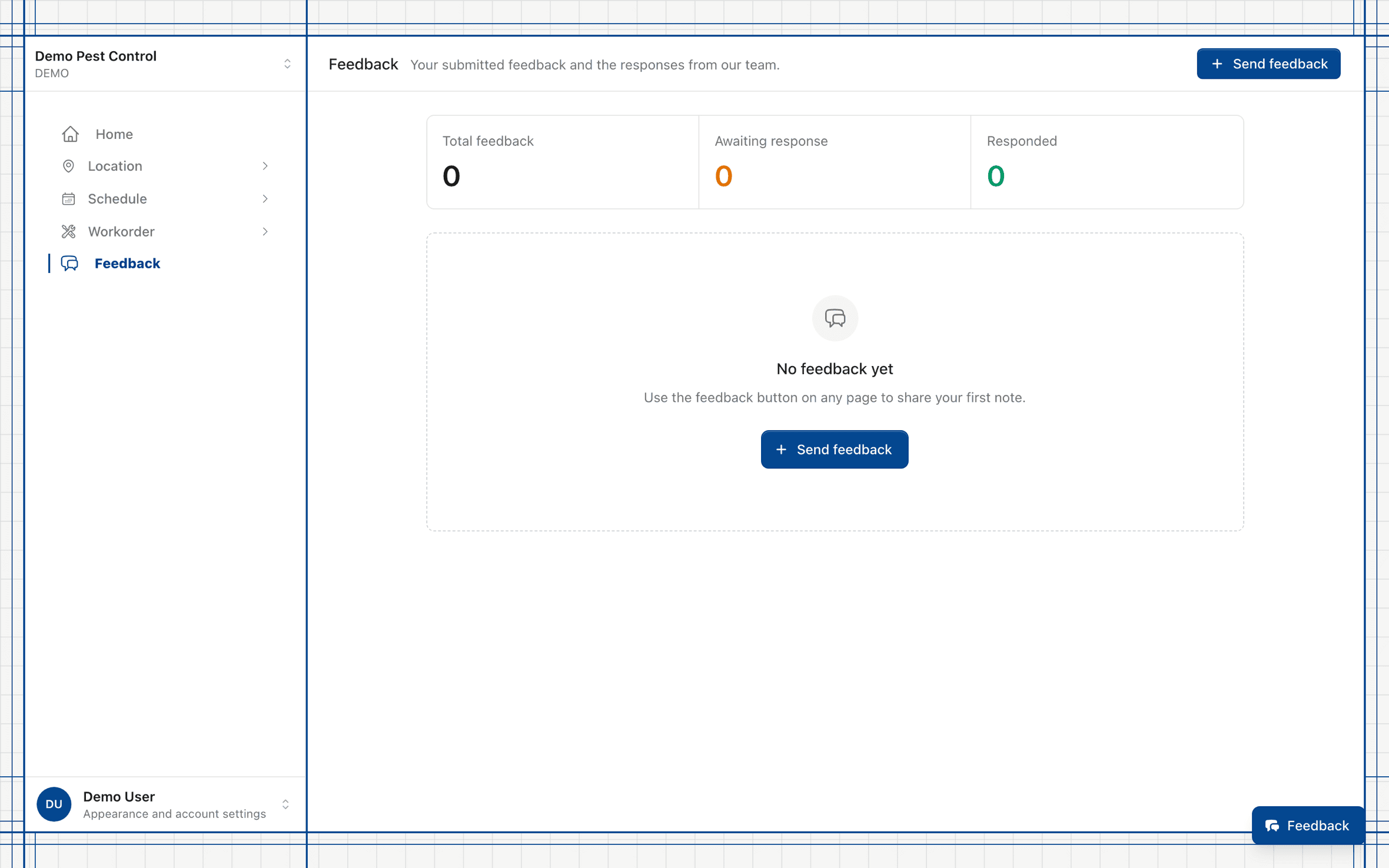
Send feedback, track the team's response
From any page — your feedback and the team's replies are recorded in one place.
- A floating feedback button on every page: Type, Rating, and Message.
- Feedback page: Total, Pending, and Responded statistics.
- A full feedback history with replies from the team.
One account, many brands
Multi-tenant — switch the active brand without leaving the portal. Location, schedule, and work order data follow the brand currently shown.
Light & dark mode
The interface adapts to your preference — comfortable day or night, wherever you work.
Sign in without a password
Sign in via a secure magic link sent to your email — no password to remember.
- 1Enter your emailUse the email registered on your contract.
- 2Check your inboxWe send a one-click login link (magic link) to your email.
- 3Click and you're inThe link takes you straight to the portal — no password.
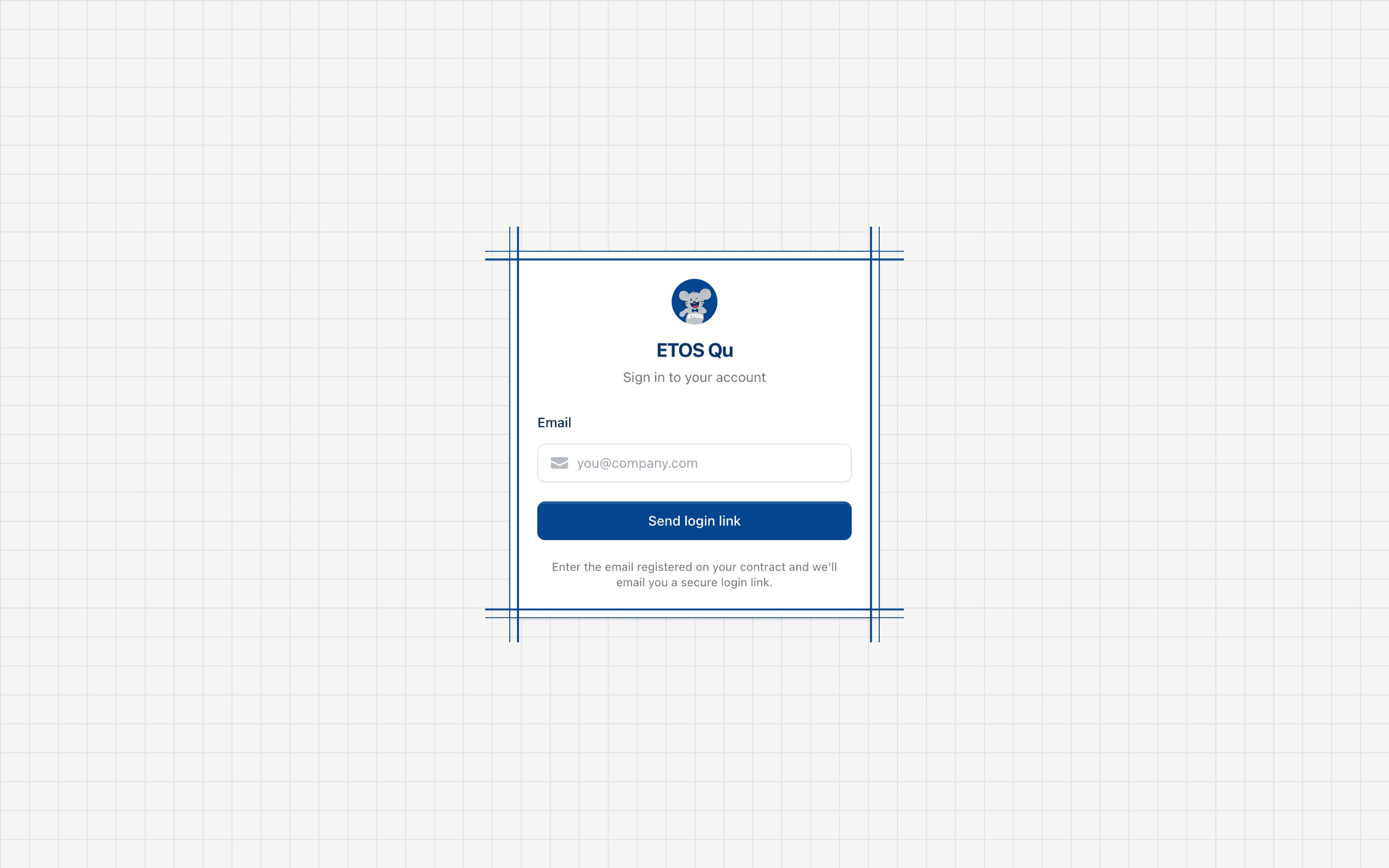
Sign in to ETOS Qu
All your pest control locations, schedules, and work orders — in one dashboard.
Sign in now